

Before comparing two Search Console reports, check which property each report covers. A whole-domain view and a view limited to one URL prefix can describe different sets of pages. A difference between their totals does not, by itself, demonstrate that your SEO improved or declined.
Ask your provider to identify the property, report, period and filters behind each figure. Keep those details with the report before using it to approve work, assess an agency handover or question an apparent change. This is a reporting check for an existing business website, rather than instructions to create accounts or change your domain settings.
Match the reporting scope before judging the result. If the views cannot be aligned, label the difference and explain what comparison remains possible.
Identify the Property Behind Each Figure
A Search Console property defines the website or section being examined. Google's property guidance describes two website property types: Domain and URL-prefix. Their coverage differs, even when the names look like the same business website.
A Domain property includes the domain's subdomains and protocols. A URL-prefix property includes URLs beginning with the specified prefix, including its protocol; it can also be limited to a path. That distinction matters when reports use different versions of an address or when the business operates a separate subdomain.
For example, https://www.example.org/ and https://example.org/ are different URL prefixes. A URL-prefix property restricted to the /services/ path on that host has a narrower scope again. These are example addresses for explaining coverage, not recommendations to create additional properties.
Record the exact property identifier and its type. A shortened dashboard label such as “Main website” is not enough to establish scope. Ask whoever prepared the report to supply the underlying identifier rather than guessing from the logo, report title or business name.
Also note where the figure came from. A screenshot taken directly in Search Console and a chart in an agency dashboard need enough information to identify the same underlying view. If the dashboard's connection cannot be confirmed, mark that part of the evidence as unresolved.
Decide Which Website Area You Mean to Compare
Write the business question before choosing a total. Are you comparing search performance for the main public website, a particular service section or all relevant parts of the domain? Each can be a useful question, but they are different questions.
List the website areas that belong in that question. A business might have its main service pages on one host and a support area on another. A wider property could include both. Do not assume that the broader total represents only the pages covered by your SEO agreement.
Ask the provider to show how the chosen property and filters match the intended scope. If the agreed work concerns a particular service section, a domain-wide chart needs an explanation of how that section is being assessed. Conversely, a narrow section view should not be presented as a measurement of the entire business website.
This does not mean the broader or narrower property is wrong. It means the report needs a clear label and a useful connection to the work being discussed. Keep a short note of included and excluded areas so another person can understand the decision later.
Avoid making website changes to force two charts to agree. A reporting mismatch is a reason to investigate the views. It is not evidence, on its own, that the site needs redirects, a migration or a different public address.
Match the Report, Period and Filters
Property scope is the first check, rather than the whole comparison. Google's Performance report guidance explains that the view can change with date range, search type and selected dimensions or filters. Keep the relevant settings with the figure being discussed.
Ask for the exact start and end dates. A report covering a completed calendar month should not be casually compared with a partial current month. If a different comparison is intentional, explain why and label its limits. A meaningful period depends on your business question and the available data.
Record the search type and any country, device, page or query restrictions used. An Australian business address does not establish that a chart has an Australia filter. Likewise, a mobile-only chart and an all-device chart need different labels even when they come from the same property.
Keep the metric and grouping clear too. A total for the selected view and a selected page row should not be described as the same observation. If a dashboard transforms or combines source data, ask the reporting owner to explain that treatment before relying on a comparison.
Do not change settings until the original view has been recorded. Save the available report or screenshot with its scope notes, then request a comparable view. Retaining the first version makes it easier to explain why a conclusion changed.
Use a Reporting-Scope Record
This record helps a business owner request the evidence behind two reports. It does not establish that any particular account or dashboard has been configured incorrectly.
| Check | Evidence to Record | Question It Answers |
|---|---|---|
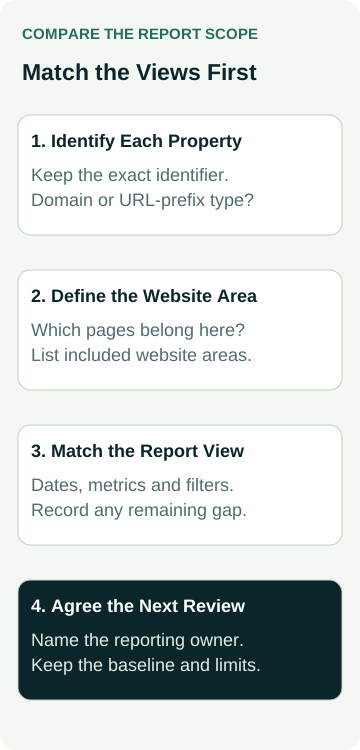
| Property | Exact identifier, Domain or URL-prefix type, included website area | Are these views covering the same part of the website? |
| Report | Source report, metric, grouping and dashboard connection if relevant | Are these figures describing the same observation? |
| Comparison | Start and end dates, search type, country, device and other restrictions | Are the periods and selected views comparable? |
| Responsibility | Reporting owner, unresolved difference and next review date | Who will explain or correct the comparison? |
Keep the record beside the reports rather than relying on a meeting recollection. “Different property” is a useful starting note; the exact identifiers and coverage make it actionable.
If the views differ intentionally, request separate headings and an explanation. If they were intended to match, ask the reporting owner to produce the comparable view or describe why it is unavailable. Neither response requires pretending that the original totals were directly comparable.
A Worked Example: A Landscaping Business Handover
Illustrative example only: this is not an AWE client account, measured result or completed agency handover.
A landscaping business receives a new agency's report after previously receiving reports from another provider. The old chart was labelled “Website search performance”. The new chart has a different total, and the owner wants to know whether the new agency's work caused the change.
Before offering an explanation, the providers identify the underlying views. The older report used a URL-prefix property for the main public website. The new report used a Domain property that also covers a separate support subdomain. Their reporting periods and country filters need checking as well.
The owner asks for a comparison covering the same agreed public website area, report and completed periods. The reporting owner records any remaining difference in coverage and explains the available comparison. The wider domain view is retained separately with a clear label because it answers a different question.
No one needs to remove a property or alter the support website to make the charts match. If the required historic view is unavailable, the report records that gap and establishes an agreed baseline for future reviews. The example does not assume that missing evidence can be recreated.
Only after the views are understood does the business assess the actual performance evidence and work completed. The mismatch itself supplies no ranking, enquiry or revenue result, and it does not show that either agency caused a change.
Resolve Access and Evidence Gaps Separately
Sometimes the person preparing the comparison cannot access the relevant property or explain an older dashboard connection. Record the precise gap: which view is needed, who may be able to provide it and which decision is waiting on it. An unavailable view is not a zero-performance result.
Ask the authorised account owner or reporting administrator to resolve access through the normal process. A reporting discussion does not authorise changing DNS, sharing personal logins, adding users or removing an outgoing provider. Agree any necessary account work separately with the person responsible for it.
For a change of provider, use the broader SEO agency handover checklist to preserve business control, available history and responsibilities. This article addresses the narrower question of whether two reporting views cover comparable website activity.
Keep a useful baseline once the scope is agreed. Record any later property or filter change so the next review can explain a break in the series. Do not silently replace an older scope with a new one and describe the resulting difference as campaign growth.
Use the Comparison to Support the Next Decision
Once the scope is clear, discuss what the evidence shows and what still needs investigation. Search performance, completed website work and suitable enquiries are separate records. A corrected report label improves understanding; it does not itself improve rankings or win work.
If the concern is that search clicks rose without more enquiries, use the separate query-mix check after establishing a comparable reporting view. Keep enquiry quality, accepted jobs and paid revenue tied to valid business records rather than inferring them from a search chart.
When discussing SEO support for your business, bring the two reports and the scope record. Agree who will reconcile the views, what can be compared and which next action the evidence supports. Ask for a clear explanation before approving website changes based on an unexplained difference.