

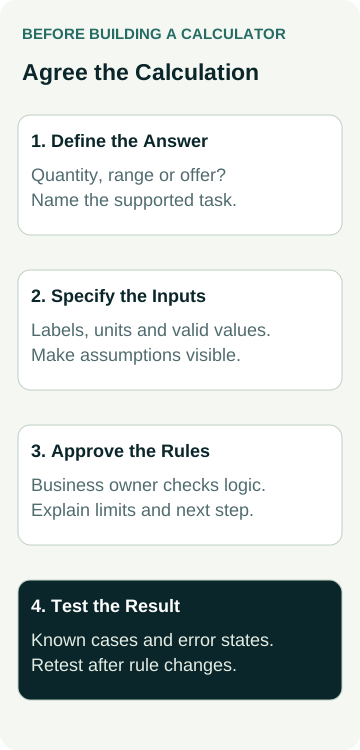
Before adding a quote calculator to your website, write down what it can calculate, which customer inputs it needs and what the result means. Agree the assumptions, exclusions, unsupported jobs and next step before choosing a plugin or approving the design. A number that updates on screen is only useful when the business can explain it.
For a service business, the calculator might help someone explore an indicative budget or estimate a quantity before making an enquiry. Some work still needs inspection, discussion or a confirmed specification. The tool should make those limits clear when they affect the result.
Give your website provider the calculation rules and representative examples, checked by the person who prices the actual work. Ask them to distinguish the calculation, the customer explanation and the enquiry handover in their proposal.
Approve the meaning of the result before its appearance. Decide whether the tool gives a quantity, an indicative range or an offer your business is prepared to make. Its wording and next action need to match that decision.
Decide What the Calculator Can Answer
Start with one question a customer could reasonably answer using the information they have. A tool estimating a rectangular area has a narrower task than one promising the cost of a complete landscaping project.
Ask the person handling enquiries where early estimates are useful and where they become unreliable. An unknown site condition, unusual material or access restriction may require a conversation. Decide how the tool will recognise a job outside its supported scope and direct that customer to help.
Write the intended result in plain language. “An indicative estimate for this defined service, using the selected options” gives the designer more direction than “instant quote tool”. Have the responsible business person review the wording, pricing information and any relevant commercial requirements before release.
The booking or quote-request guide helps clarify what the business can confirm at each stage. A calculator result should not accidentally imply that a job, appointment or final price has been accepted when another assessment is still needed.
Give Each Input a Unit and a Purpose
List the information required to produce the agreed result. For each input, record its label, unit, allowed values, default and what happens when the customer does not know the answer. A field called “size” leaves too much interpretation to the visitor.
Distinguish length from area, quantities from rates and customer choices from assumptions supplied by the business. If the customer enters metres, label that clearly. If the tool calculates square metres, show that unit with the result. Ask how decimals, minimum values and unusually large entries will be handled.
W3C's form instructions guidance recommends explaining required and optional inputs, formats and other information needed to complete a form. Apply that principle to the calculator: put useful instructions where the person needs them, rather than expecting an error message to explain the question afterwards.
Avoid collecting contact details merely because the calculator has fields available. Decide whether the customer can see the result first and what information is needed if they choose to enquire. The enquiry-form field guide covers that separate information-gathering decision.
If a default changes the estimate, make it understandable and editable where appropriate. An invisible assumption about service type or job size can produce a plausible-looking answer to a question the customer did not ask.
Write the Rules Where the Business Can Review Them
Have the person who prices the work supply the actual calculation. Record the rate source, included work, minimum charge, applicable fees, tax treatment, rounding and exclusions where those items are relevant. Do not ask the developer to invent commercial rules from a few example jobs.
Separate rules from presentation. The approved calculation may produce a range, while the page explains why the amount is indicative and which conditions need confirmation. Both parts need review. A small disclaimer cannot repair a calculation that does not represent the service being offered.
Include the cases that should stop the calculation. Perhaps the business does not cover the selected area, the requested material is unsupported or the measurements are outside what this tool can handle. Agree an appropriate message and contact route instead of returning a misleading zero or a default price.
Keep an approved rule version. Name who can change rates and assumptions, how those changes reach the website and which examples must be checked again. An easy-to-edit field still needs an accountable owner.
Ask whether the proposed tool can implement these requirements before committing to it. Some plugins support simple arithmetic; more complex conditions may require different work. Have the provider explain the actual fit, limitations, recurring costs and maintenance scope.
A Worked Example: An Area Estimate Before a Turf Enquiry
This example is illustrative. It does not describe an AWE client, a live calculator or a turf-pricing recommendation.
A garden business wants customers to estimate a rectangular area before discussing turf supply and preparation. The owner agrees that the first version will calculate area from two measurements. It will not estimate an irregular shape or promise a completed installation price.
The labels ask for length and width in metres. For the approved test example, six metres multiplied by four metres gives an area of 24 square metres. The result identifies the unit and explains the next step for discussing the job. Site preparation, access and any supply allowance remain matters for the actual business to assess.
The owner supplies further examples for review. The provider records the expected behaviour before implementing the tool:
| Test Situation | Expected Behaviour to Agree | Evidence to Keep |
|---|---|---|
| Supported measurements | Calculate the approved result with the correct unit | Inputs, rule version and expected answer |
| Missing or invalid value | Explain what needs correcting without a plausible result | Message, affected field and retest |
| Unsupported job or shape | Explain the limit and offer the appropriate next step | Scope decision and displayed wording |
| A changed measurement | Recalculate without leaving the previous answer presented as current | Before-and-after inputs and observed result |
The first example checks arithmetic and units. The other cases check whether the tool behaves sensibly when it cannot answer or when the inputs change. A successful result in one case does not establish that every supported combination works.
If the business later wants a price estimate, that becomes a new rule and wording review. The team would need the business's approved pricing assumptions and test examples rather than turning the area result into a price by guesswork.
Check Errors, Results and Mobile Use Together
W3C's input validation guidance explains how validation helps people avoid mistakes and identifies the need for accessible notifications when custom validation is used. Ask the provider how a customer will identify and correct an invalid input in this tool.
Review the result after changing a selection, clearing a required value and entering values at the agreed limits. Ask whether an old result disappears, updates or is clearly marked as needing recalculation. The behaviour should prevent someone mistaking a previous answer for the current one.
On a phone, check the labels, units, controls, messages and result together. Can someone enter a decimal value where allowed, read the explanation and reach the next action? Agree keyboard, enlarged-text and other relevant accessibility checks with the reviewer, including their coverage and limits.
Have the tester record the tool version, inputs, environment, expected behaviour and actual observation. Keep failures and retests so the business can see what was corrected. A design image, a plugin demonstration or a single successful calculation does not replace checks of the configured website tool.
Make the Enquiry Handover Match the Result
Decide what happens after the estimate. The customer might request a review, send the selected options or contact the business with a reference. Use wording that describes that actual action and explains what still needs confirmation.
If the result is sent with an enquiry, agree which inputs, assumptions and rule version staff need to understand it. Otherwise, the person replying may receive a number without enough context to explain how it was produced. Ask how the customer can correct a mistaken selection before sending.
Separate calculation checks from message-delivery checks. A correct answer on screen does not prove an enquiry reached the intended recipient. Any submission test needs an agreed test flow, inputs, recipient and cleanup so it does not create an unwanted booking or real job request.
Ask the provider to explain what the tool stores or shares and whether the proposed service needs a separate privacy or security review. Keep that assessment tied to the actual implementation. Avoid adding unnecessary personal information to an early estimate.
Include Maintenance in the Website Scope
Before approving the build, check that the proposal names the calculation owner, supported cases, inputs, rules, result wording, next action and test coverage. Identify who supplies business facts and who implements and verifies the configured tool.
Agree which changes require another review. New rates, new services, different eligibility rules or a replacement plugin can affect earlier results. Keep a small approved set of examples with expected answers so later changes can be checked against something more useful than memory.
When discussing small business website packages, bring this brief and ask which calculator work can be included or separately scoped. A standard enquiry form and a maintained calculation tool involve different responsibilities. Start with a useful question the business can answer reliably, then build and review that defined task.