
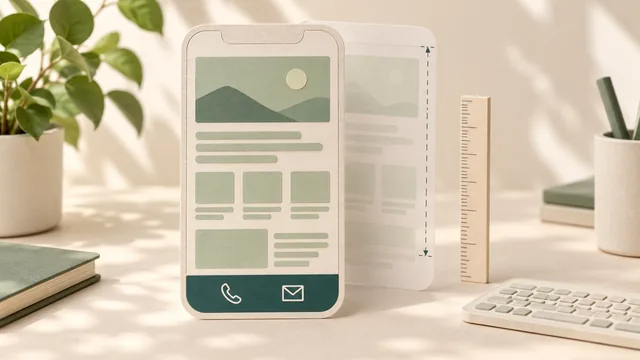
Compare the page with and without a fixed contact bar before approving the feature. Keeping a call or enquiry link visible can be useful, but the bar also takes up space. It needs to leave the service information, page controls and customer task usable on a small screen.
A mobile contact bar is a strip of actions that stays near the screen edge while someone moves through a page. Providers may call it a sticky action bar or floating contact bar. Ask them to demonstrate the proposed behaviour: “sticky” can describe different designs, and a still screenshot will not show when the bar appears or what it overlaps.
For a small service business, start with the action customers actually need. A visible contact route within the page may be enough. If a persistent bar helps, agree its labels, destinations, display rules and checks before it becomes part of the build.
Keep the service explanation and normal contact route usable without relying on the bar. Approve the extra layer for a clear customer purpose, then check the space it occupies.
Choose the Action Before Choosing the Bar
Write the customer’s task in ordinary language. “Ask whether you service my equipment” is more useful than “increase engagement”. Decide whether the proposed action should open a contact page, move to an enquiry section or offer a telephone link.
Make the label describe what happens. “Request a Quote” should lead to the agreed request route; it should not imply that a price or appointment has already been confirmed. “Call” should use the business’s approved number. An envelope icon alone may leave someone guessing whether it opens their email app or a website form.
Agree which actions earn space in the bar. A row of phone, email, chat, directions and social icons can turn a simple route into another menu. Use the business’s real customer needs and available contact methods, rather than every option a plugin provides.
If the existing navigation is unclear, address that decision too. The website menu guide covers labels and routes across the site. A persistent contact strip should not be the only way to find information the menu fails to explain.
Describe When It Appears and Where It Stays
Ask for the display rules in the brief. Does the bar appear immediately, after scrolling or only on selected pages? Is it visible on tablets or desktop screens? What happens when someone returns to the top or reaches the main contact section?
Decide whether the bar is needed on each relevant page type. A service page, contact page and external booking route may call for different treatment. Do not assume a sitewide addition has the same effect everywhere.
Include interactions with the rest of the interface. A cookie notice, chat launcher, open menu and contact bar can compete for the same space. Have the designer show the combinations that actually exist in the proposed site. The owner needs to see which layer stays visible and how the customer continues.
If the design includes a way to hide the bar, agree what that control does and how someone can still find contact information. If it does not, ask how the layout keeps the page usable. A dismissal control is a design option to assess, not a substitute for reviewing the whole experience.
Check What the Bar Covers
Inspect the content behind and around the strip, including the bottom of the page. Can someone read the last paragraph, use the footer links and reach the normal contact controls? A bar that looks tidy at the top may cover something important farther down.
W3C’s guidance on Focus Not Obscured (Minimum) explains that a component receiving keyboard focus must not be entirely hidden by author-created content. It specifically discusses sticky headers and footers as possible sources of overlap. The minimum criterion allows partial obscuring; keeping the focused item fully clear is a better design aim to discuss.
Ask the reviewer to inspect keyboard movement through the actual page, including controls near the bar. Being able to tap the bar itself does not establish that the rest of the page remains accessible. The focused item and its visible indication both deserve attention within the agreed review.
Also inspect enlarged text and narrow layouts. W3C’s Reflow guidance addresses preserving information and functionality without requiring scrolling in two dimensions, with defined dimensions and exceptions. Ask how the proposed bar and surrounding content will be checked against that requirement. A quick phone screenshot is useful visual evidence, but it does not establish full conformance.
Put the Interaction States in the Brief
Use a short record to make the display and overlap decisions reviewable. Give each state an expected result and a person responsible for checking the actual build.
| Situation | Behaviour to Agree | Evidence to Request |
|---|---|---|
| Service page reading | Useful content and contact route remain available | Top, middle and bottom page review |
| Menu or notice open | Layers leave the intended task usable | Relevant combinations demonstrated |
| Enquiry field active | Fields, instructions and controls stay usable | Review with the on-screen keyboard present |
| Keyboard or enlarged view | Focus and information remain available | Recorded methods, findings and repairs |
Include a comparison without the bar. If it adds little to the customer’s task, a clear ordinary link may be the better choice. If it stays, the record tells the designer what must work beyond the initial appearance.
Put the feature in the accessibility review scope. Agree the pages, states, methods and limits of that review, plus who fixes findings. This planning record does not replace a knowledgeable assessment of the component or site.
A Worked Example: A Heating-Service Enquiry
This is an illustrative design brief, not a client result. An example heating-service business proposes a bottom bar with “Call” and “Request Service”. The second action leads to the existing enquiry section, where customers describe the equipment and work they need.
The owner asks the designer to show a service page with and without the strip. The comparison checks whether the service explanation remains readable, the two labels have clear destinations and the main enquiry route is easy to find without the extra layer.
The preview review then includes the open mobile menu, the bottom of the page and the enquiry section with the on-screen keyboard present. The owner wants to know whether the strip hides a field instruction or the next control, rather than simply whether its colour matches the brand.
The business confirms the actual telephone number and what “Request Service” means. The bar does not promise immediate attendance, an answered call or a booked appointment. Any response arrangements need to match the business’s real process.
The owner can approve the feature once the agreed behaviour and review findings are clear. That decision does not predict more calls or sales; it records why the feature is useful and what was checked.
Review the Built Route Without Creating Unplanned Enquiries
Ask the provider to review the preview using the approved labels, destinations and real-length content. Include the screen sizes, browsers and methods agreed in the scope. Keep the preview version and findings with the handover, so later changes can be compared with the reviewed build.
A review can inspect where a telephone or enquiry link points without placing a call or sending a message. If a real call, form submission or notification test is needed, agree the recipient, timing, test details and cleanup separately. Avoid creating work for the business simply to demonstrate that a button exists.
The mobile enquiry-path guide covers the wider service-to-contact journey. Here, keep the additional question specific: does the persistent strip help that route while leaving the other steps usable?
Record a tap or click separately from its eventual outcome. A telephone-link event does not prove that a conversation took place, and an enquiry link does not prove a suitable request arrived. Any measurement setup needs to reflect the actual route and be agreed as part of the work.
Agree Maintenance and the Price of the Feature
Before accepting the quote, ask whether the contact bar, page-specific rules, review and repairs are included. If a plugin or external service is proposed, clarify its licence, ongoing charges, account ownership and update responsibility. Do not approve a tool solely because its feature list includes many contact channels.
Name who keeps the labels, number and destinations current. A later change to the phone number, enquiry route or page layout should trigger a review of the strip too. Keep the normal contact information consistent with the approved business arrangements.
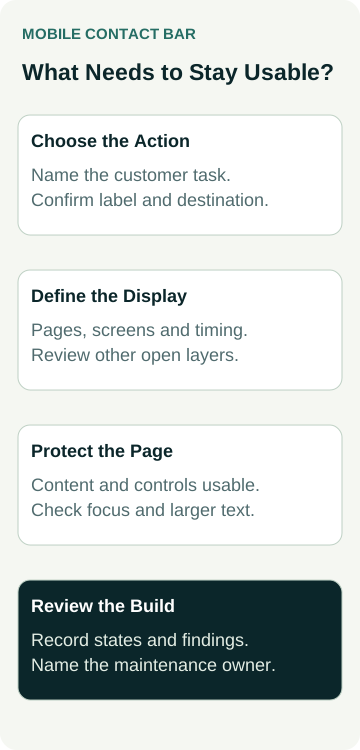
- Purpose: the customer task and reason to keep the action visible.
- Behaviour: pages, screens, appearance rules and interactions with other layers.
- Review: content visibility, focus, enlarged layouts and agreed input methods.
- Ownership: accurate contact details, maintenance and evidence of repairs.
Australian Web Experts’ website packages are a starting point for discussing the site you need. Bring the proposed contact actions and ask the designer to demonstrate the page with and without a persistent bar. Agree the useful behaviour and checks before paying for the extra feature.