
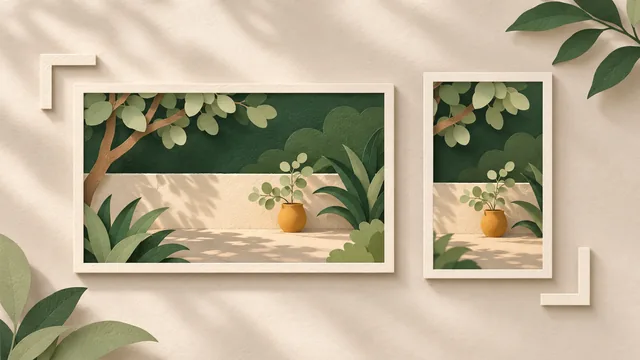
Review the photograph inside the actual homepage layout before approving it. A wide project photo can look clear on a laptop while a phone view hides the very feature it was chosen to show. A larger file will not bring back a subject that sits outside the visible frame.
For an Australian business commissioning a website, the useful decision is which image treatment explains the work at each layout size. Sometimes the same photograph works throughout. Sometimes the designer needs another crop, another approved image or a different arrangement of image and text.
Decide What Must Remain Visible
Name the reason for using the photograph. “Show the completed garden layout” is a different requirement from “show the paving detail”. A close crop might serve one purpose and fail the other.
Identify the important feature before comparing versions: the repaired component, the relationship between two parts of a room or the product a customer needs to recognise. Separate that information from incidental sky, foliage and background objects. You do not need every pixel of the original, but the remaining view should still support the intended message.
Our project-gallery guide covers choosing useful job photos and supporting their captions. Here the question is narrower: does the selected homepage treatment still show what the photograph is meant to explain?
Start with an image you are entitled to use and edit. For supplied library images, check the stock-photo arrangement rather than assuming a crop or alternate use is covered. Keep private customer details out of any public copy.
Distinguish a Crop From a Small or Blurry Image
A photograph has its own shape. The space reserved for it on the page has another. A wide image placed inside a tall frame cannot both fill that frame and show its entire scene without changing proportions.
MDN's image-fitting documentation explains the difference between filling a box while cropping and fitting the whole image inside it. Its image-position guidance explains how the visible placement can be adjusted. These are developer choices; you can describe the missing subject without prescribing a CSS setting.
If the feature is present but too small to recognise, a closer view may help. If the visible image is blurry, ask the designer to inspect the delivered file and display size. If the feature has been cut off, changing compression or uploading a bigger version alone does not resolve the composition.
Avoid asking for one universal “mobile image size”. The useful shape depends on the actual page. MDN's responsive-image guide distinguishes supplying suitable resolutions from using different compositions for different layouts. A second image is an option to assess, not a requirement for every homepage.
A Worked Crop Comparison
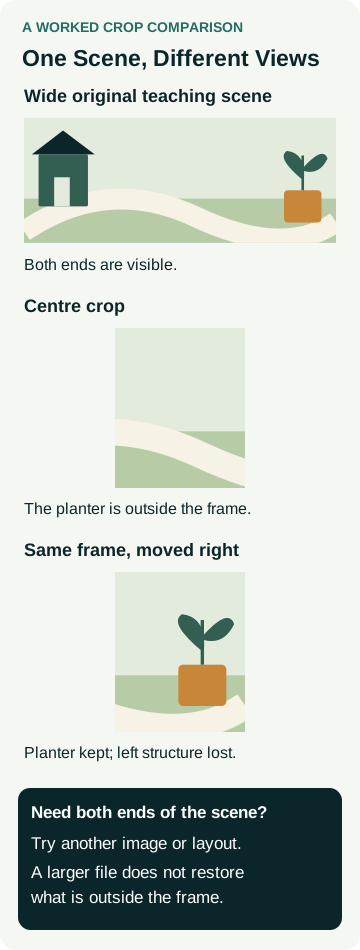
The illustration below uses one original teaching scene, not a client photograph. The wide scene contains a structure on the left and an amber planter on the right.
In the centre crop, the planter disappears. Moving the same narrow frame towards the planter brings it back but loses the left-hand structure. Nothing has been added to the scene. The two crops simply keep different parts of it.
If the planter is the subject, the repositioned view may work. If the purpose is to explain the relationship between both ends of the garden, neither narrow view communicates the whole scene. The designer can consider showing the full image in a shallower space, placing it below the text or choosing another approved photograph.
Choose the Response That Fits the Problem
Use the observed problem to choose a design response. Ask to see the result in the page before treating the change as complete.
| What You See | Response to Explore | What to Check in the Revision |
|---|---|---|
| One important feature is cut off | Reposition the visible crop | The feature is clear and another essential detail has not disappeared |
| Two distant features must be understood together | Show more of the scene or change the layout | Both remain recognisable at the displayed size |
| The whole scene fits but the useful detail is tiny | Use a closer approved view or separate mobile composition | The new view still represents the intended work accurately |
| The image fights the headline or button | Put text in its own area or select a quieter image | Actual wording and the customer action remain readable |
Do not stretch a photograph to force it into a different shape. Also distinguish cropping from changing evidence: removing a defect, generating a replacement fitting or adding work that was never done would change what the image claims to show. An illustration should be identified as an illustration rather than passed off as a completed project.
Review the Image With the Real Words
Use the actual headline, supporting sentence and button label. A quiet patch behind one short line might become a busy background behind a longer heading. A desktop layout with text beside the photo may place the same elements differently on a phone.
Keep ordinary headings and buttons as website elements. W3C's images-of-text guidance explains why genuine text is more adaptable than text embedded in an image. A picture of a button is also not a working enquiry control.
Ask the designer to review the image's text alternative for its purpose. W3C's image tutorial distinguishes informative, decorative and functional uses. If an alternate image changes what is communicated, the accompanying description needs review too. Alt text does not make a cropped-out feature visible to someone looking at the page.
These checks help assess this image treatment. They do not establish accessibility conformance for the whole website; keep the wider accessibility review scope separate.
Give the Designer a Useful Crop Note
An example landscaping business wants its homepage image to explain a completed paving feature. On the current narrow preview, the owner sees mainly planting and the paving is outside the frame.
A useful note is: “Homepage opening image, current preview, narrow phone-sized view: the paving feature is missing. Please show a treatment that keeps that feature clear alongside the final headline and enquiry button.” Attach the relevant view and identify the approved source image. Leave room for the designer to propose the crop or layout.
If the owner instead needs the whole garden layout, say so. That could lead to a different response from moving the crop towards one detail. This example describes a review decision, not a real customer project or a measured improvement.
Use the draft-feedback guide to record the version and revision. Revisit the delivered page at a wide view, a narrow view and an intermediate width. Note whether you used an actual phone or a desktop preview; one is not evidence that every browser and device has been tested.
Check the Next Image Replacement Too
If you expect to swap homepage photos yourself, include that exact task in the website-editing handover. Ask the provider to demonstrate replacing the image and reviewing its different layouts. A new photograph can put the important subject somewhere else even when the frame settings stay unchanged.
Keep the approved source, intended subject and chosen treatment together. When discussing AWE's website packages, bring a few approved images and explain what customers should recognise in each. Talk to Matt about the image preparation and review work appropriate to the proposed build.